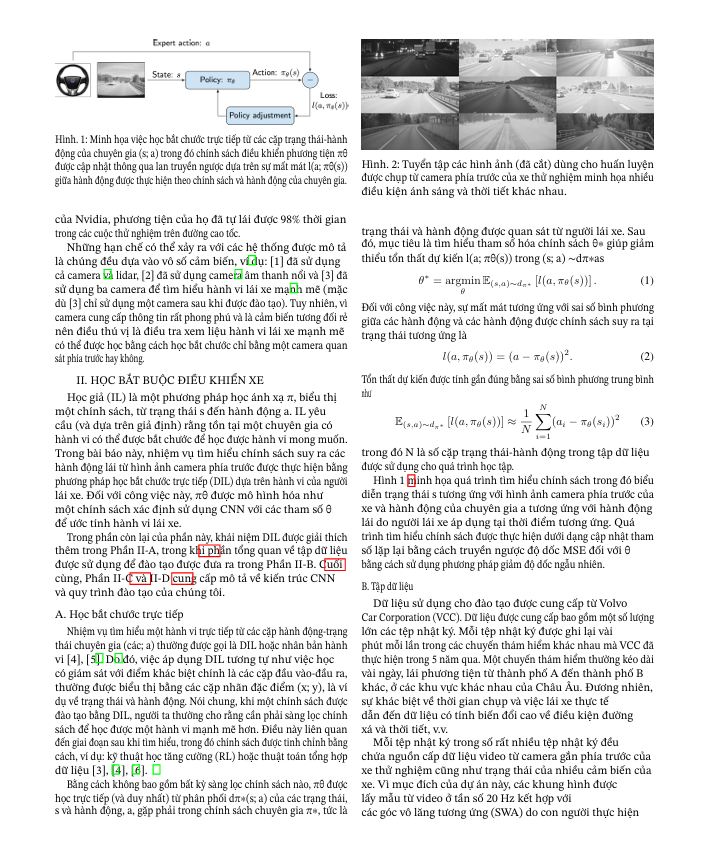
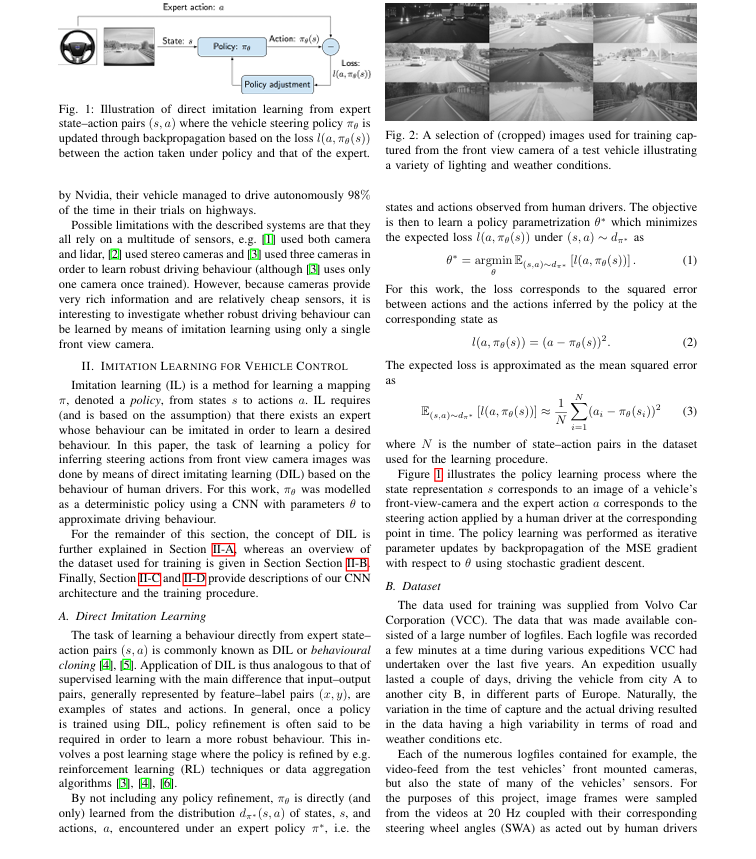
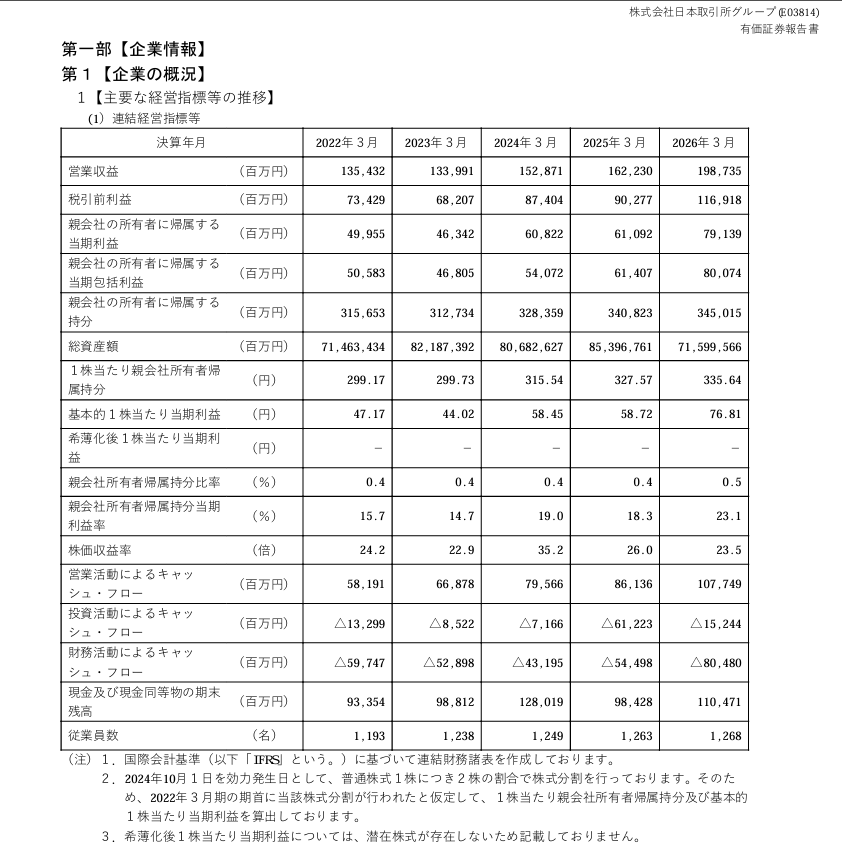
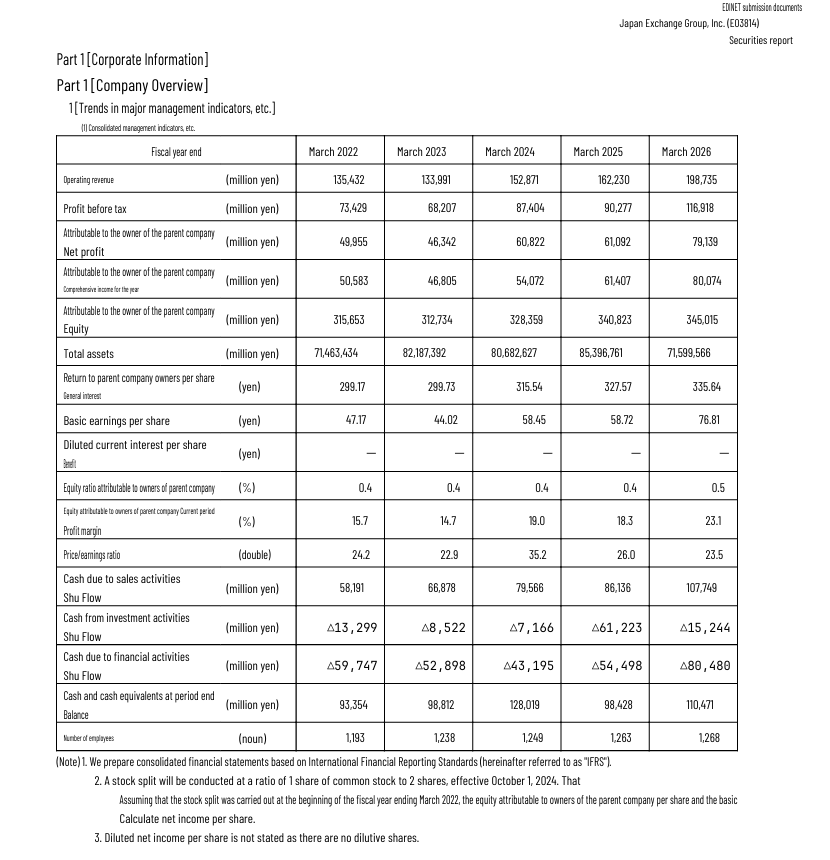
Are you looking for a way to translate a PDF document into the language you desire while preserving the layout, font, and image positions like the original?
This is a common issue when working with academic papers, reports, contracts, or documents with many tables. If you just extract all the text, translate it, and rebuild the PDF, the original layout is easily broken.
In this article, we will explore why PDFs lose formatting after translation and how to process them with a focus on preserving the document's structure.
Try PrivatePDF's translation tool
Process documents right in your browser with a simple interface, focusing on preserving the original file's layout.
TRANSLATE PDF NOWWhy do most PDF translation tools break formatting?
PDF (Portable Document Format) is designed primarily to keep documents looking the same across devices. It doesn't work like a Word document with simple concepts like paragraphs, columns, or lines.
Inside a PDF, content position is usually described by coordinates. When text is translated into another language, sentence length changes. If a tool just takes raw text and tries to put it back, the text might overflow, overlap, or shift from its original position.
Steps to translate PDF while preserving layout
- Step 1: Open the tool. Go to PrivatePDF's Translate PDF page.
- Step 2: Upload file. Drag and drop the PDF file into the upload area and wait for the system to read the document.
- Step 3: Select language. Choose the target language you want to use for the translation.
- Step 4: Translate and download. Start the translation process, review the results, and download the PDF file to your device.
How many languages can be translated?
The short answer is: Any language in the world! Thanks to our core technology, the system can translate as many languages as the underlying model knows.
Desktop Version: Local AI and multiple translation options
For users who need to process documents frequently, PrivatePDF Desktop might be a better choice for tasks that require direct processing on a computer.
- Diverse AI Integration: The Desktop version integrates various smart AIs like ChatGPT, Gemini, DeepL,... to enhance translation quality. Additionally, it features Local AI which allows completely offline, highly secure document translation.
- Multiple tools: choose the translation method that best fits each type of document.
- Custom fonts: supports adjusting fonts after translation to better suit your needs.
PrivatePDF Desktop
Dedicated translation software with more options for your translation needs.
DOWNLOAD APPWhy is security important when translating PDF?
If your document contains internal information, contracts, reports, or unpublished data, choosing how to process the file is an important consideration.
- In-browser processing: according to PrivatePDF's description, the web tools are designed to process files directly in the browser for features that support local processing.
- No registration required: users can use the tools without creating an account for supported operations.
- Device dependent: when processing locally, the actual speed and limits depend on your computer's memory and power.
Can scanned PDFs be translated?
For scanned PDFs, you only need an OCR tool to extract the text before translating. However, the translation result heavily depends on the quality of the original file.
If the scan quality is good, the OCR model will perfectly recognize the text and provide an accurate translation. Conversely, if the file is too blurry or of low quality, the system might misrecognize characters or output unreadable text.